Batch Payroll Adjustments
Create many payroll adjustments at once by exporting a pre-filled Excel template, editing it, and importing it back into Haldi FCS.
Using batch payroll adjustments saves time by letting you create all of the adjustments in Excel and then upload them to Haldi FCS at one time. For example, if you pay drivers a quarterly bonus, instead of entering each adjustment individually, you can add them all to the system with an easy upload.
Step 1. Open the payroll
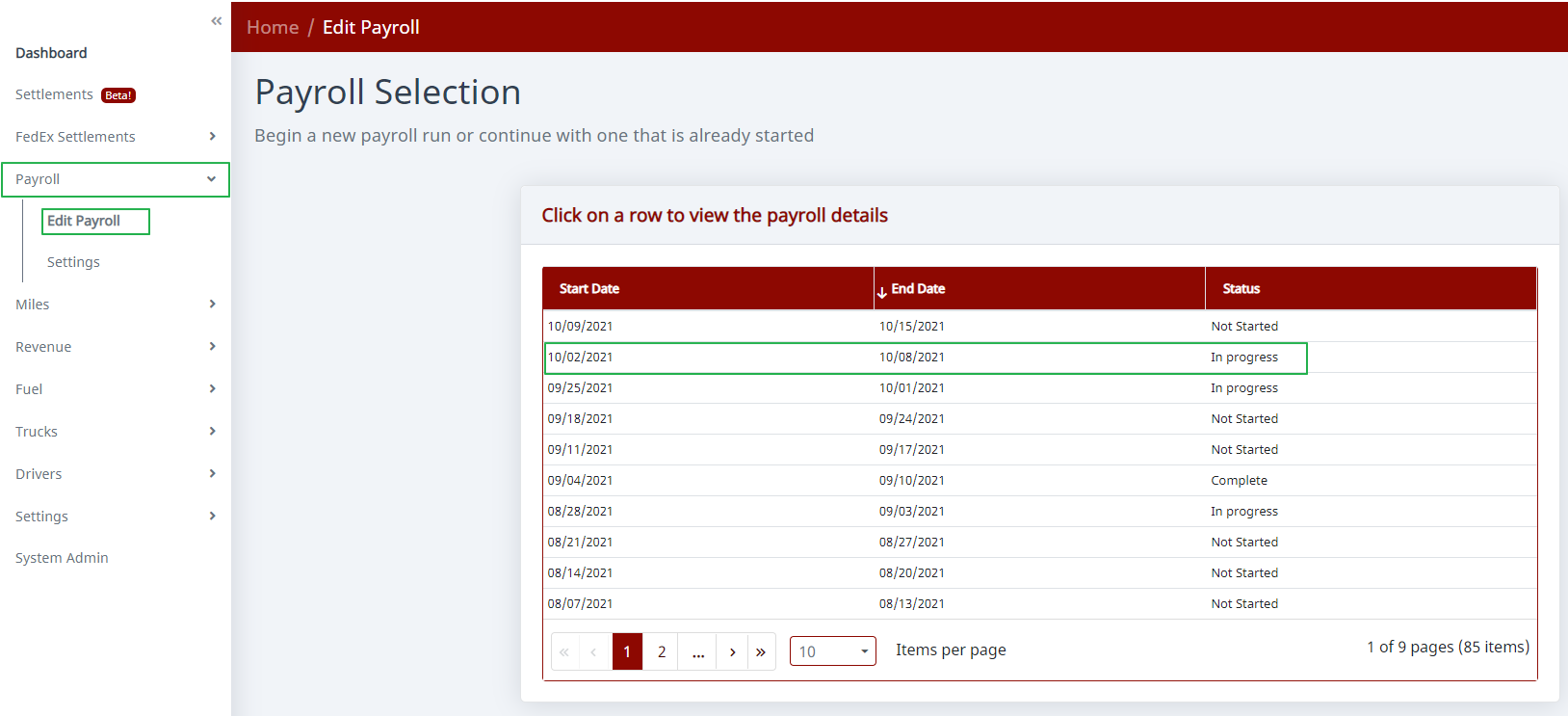
Go to the Payroll section on the left menu. Click Edit Payroll and select the payroll you want to work on.
Step 2. Export the Excel template
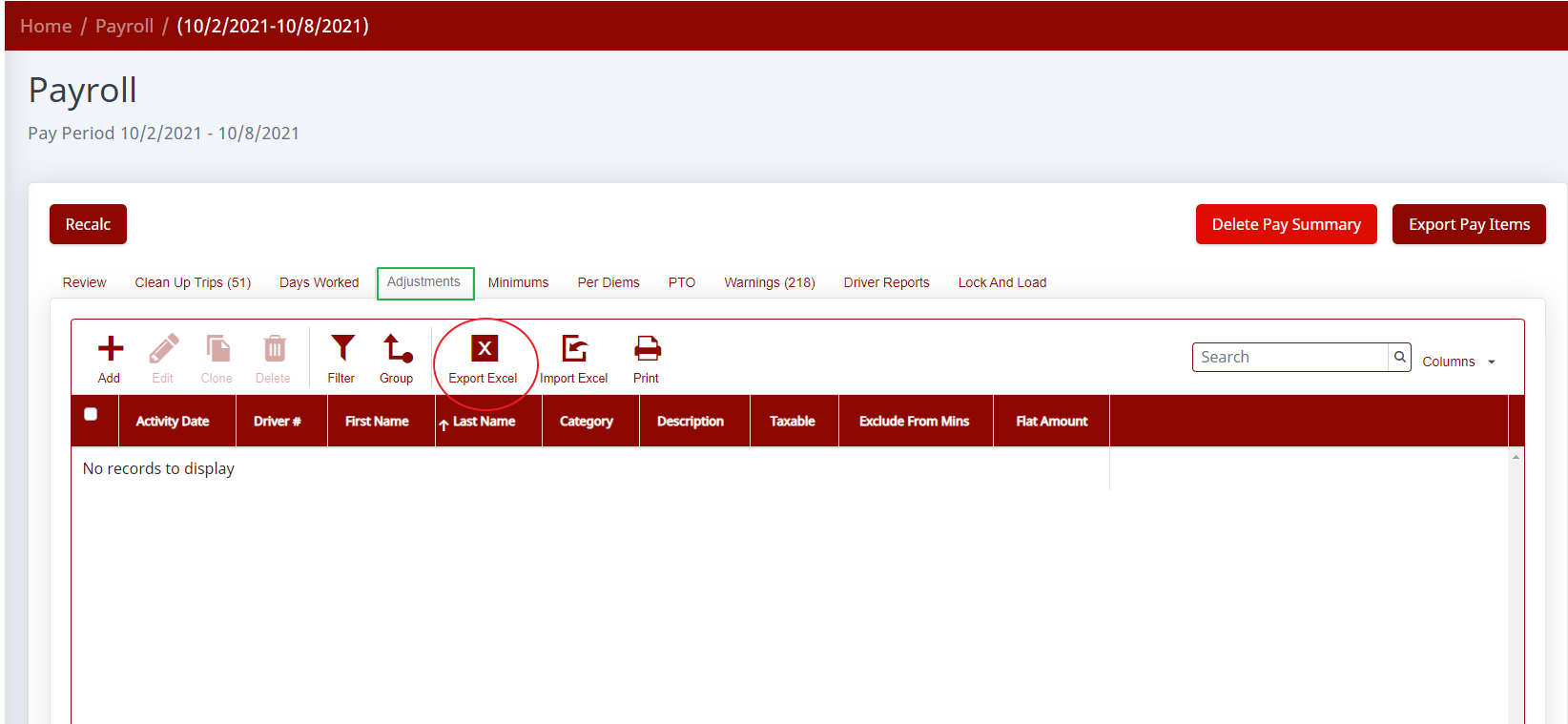
Once inside the payroll you selected, click Adjustments, then select Export Excel.
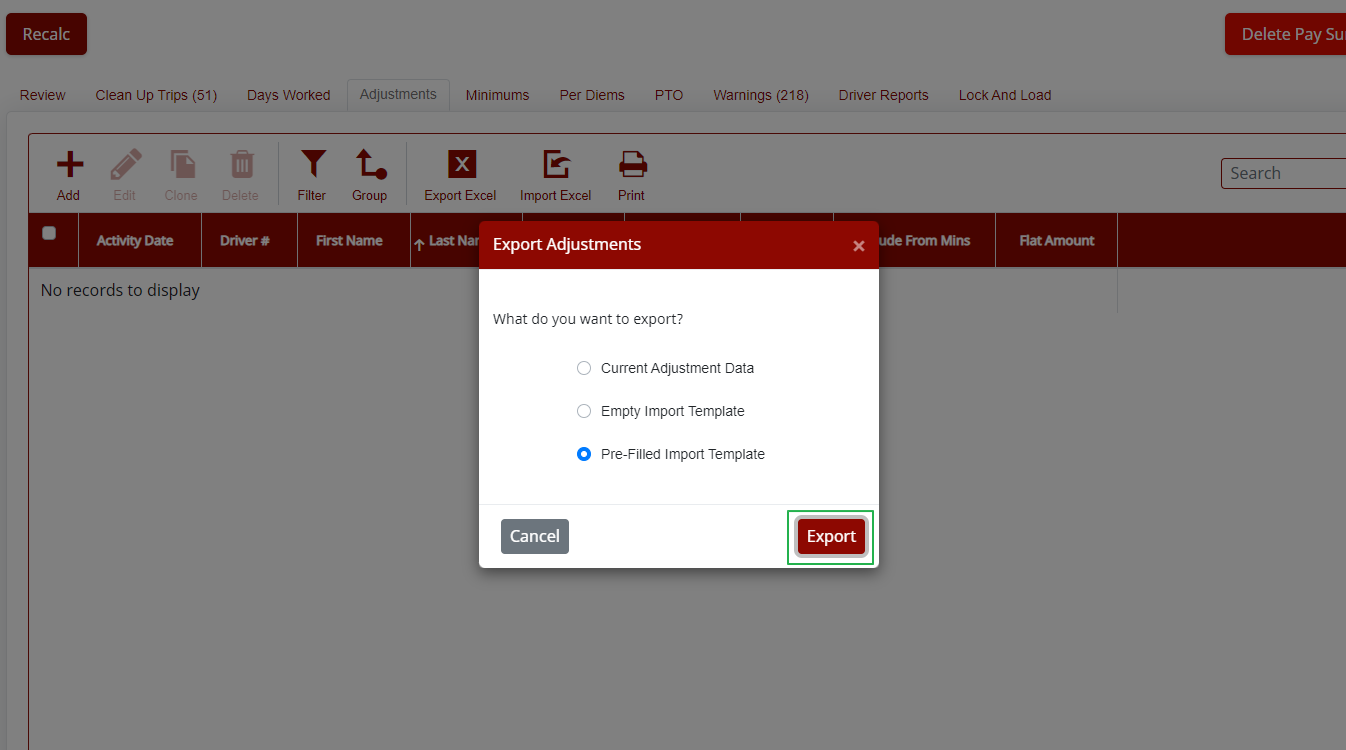
You'll then get a pop-up menu. Select Pre-filled Import Template and Export.
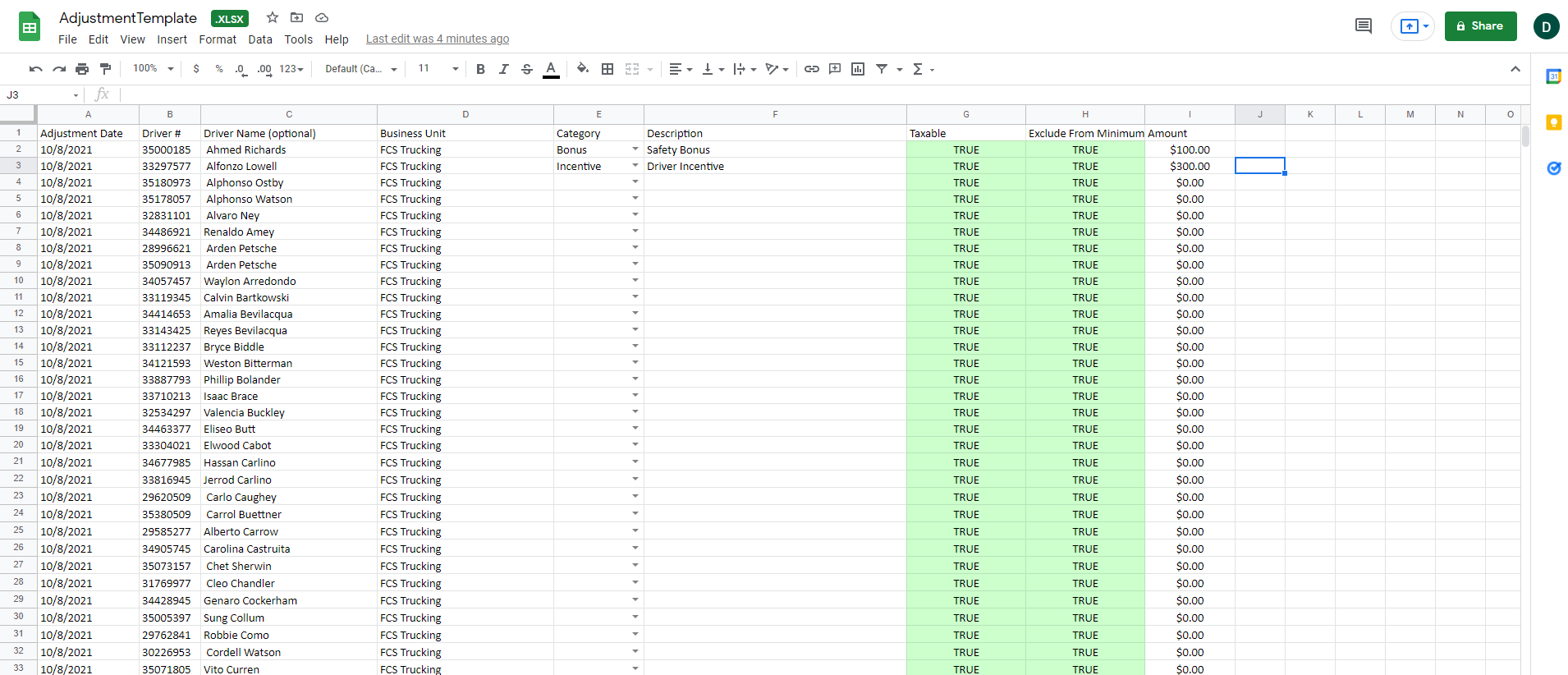
This gives you an Excel file in a format that can be imported, with all the drivers already listed on it.
Step 3. Edit the file
Enter the Category, Description, Taxable, Exclude From Minimum, and Amount columns however you'd like. You can cut and paste, add or delete rows, make multiple adjustments for one driver, and so on.
Step 4. Import the file
Once the Excel is the way you want it, come back and click the Import Excel button.
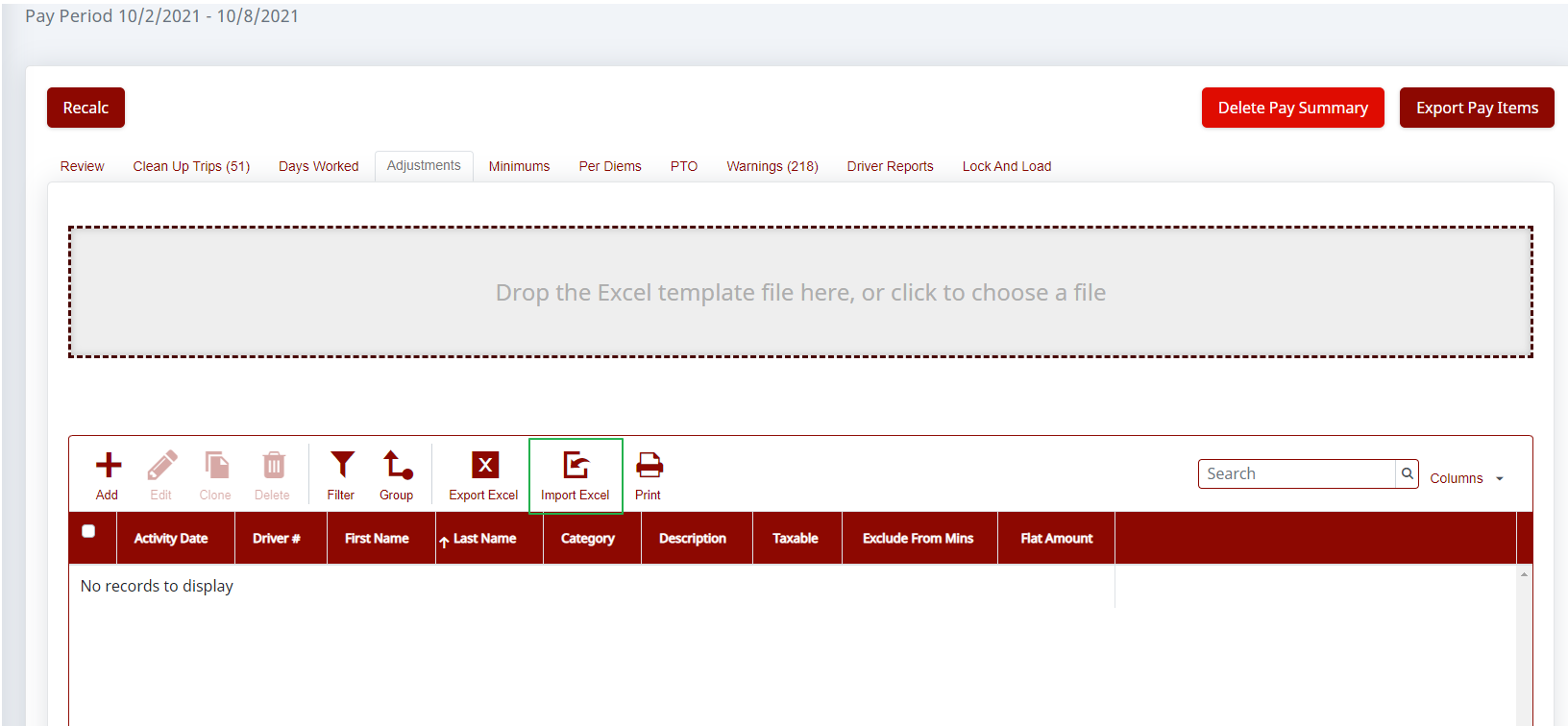
Then drag your saved Excel to the box that appears and follow the prompts to batch-create the adjustments.
Need help?
Email support@halditech.com or call us at (470) 594-2534.