How to Reset Your Password
How to reset your Halditech password from the login screen using an emailed verification code.
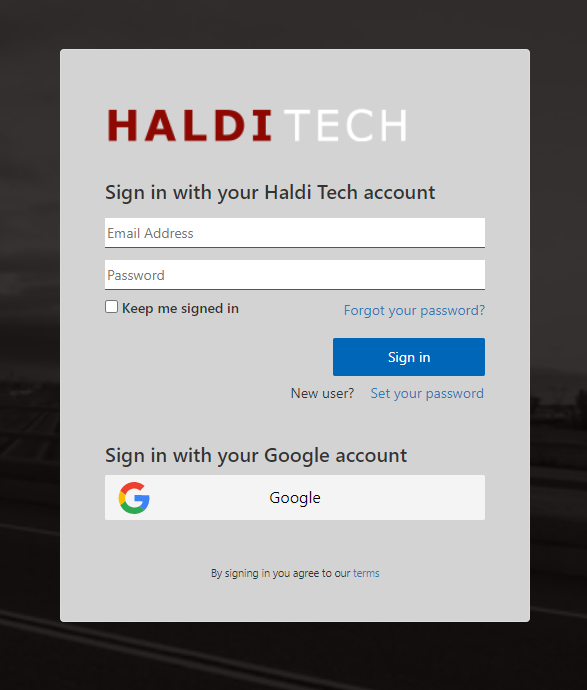
To reset your password, go to the login screen and click on "Forgot your password".
Note: If you're trying to reset your password for another user, that user has to initiate the password reset using these instructions. Passwords cannot be reset from within the Haldi FCS app.

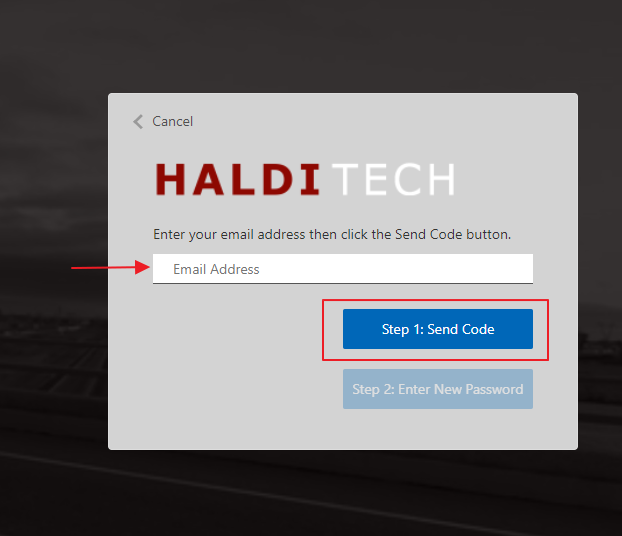
Step 1. Send the code.
Enter the email address used to sign into your account and click on Step 1: Send Code.
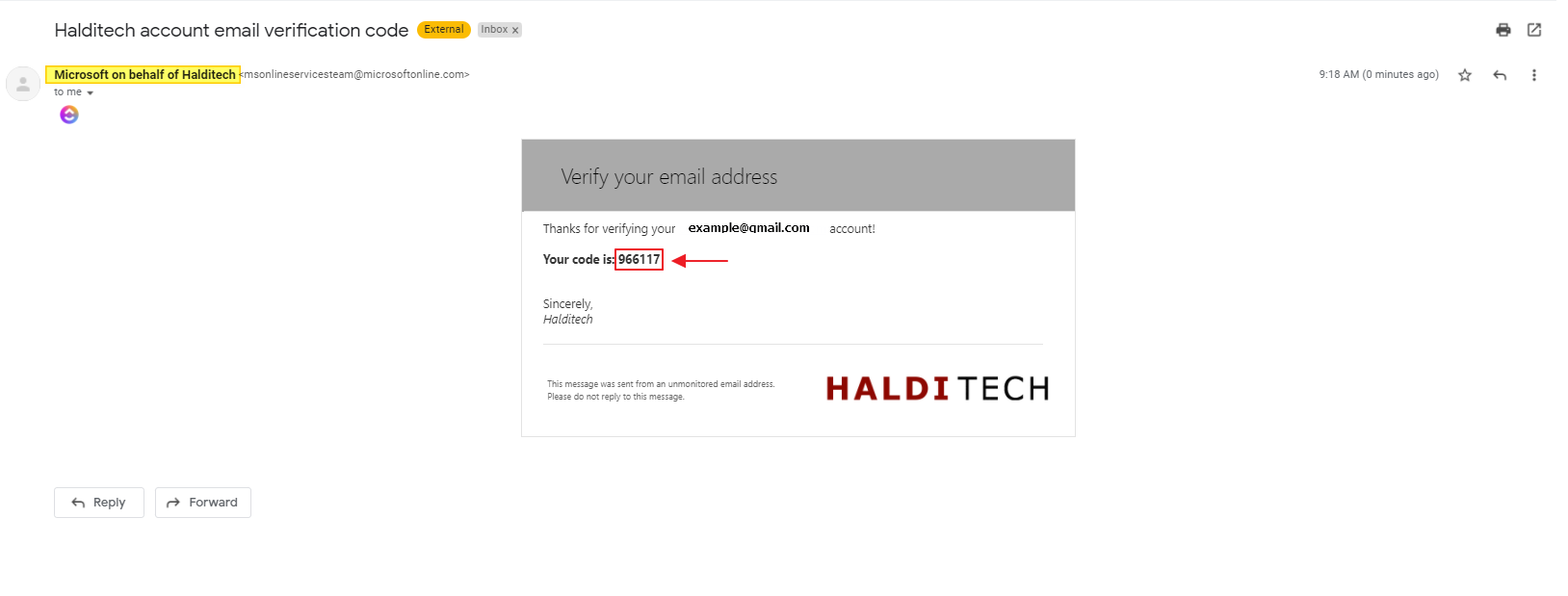
Step 2. Get the verification code.
Check your email for a message from "Microsoft on behalf of Halditech". You'll receive a 6-digit code you will need to verify your email.
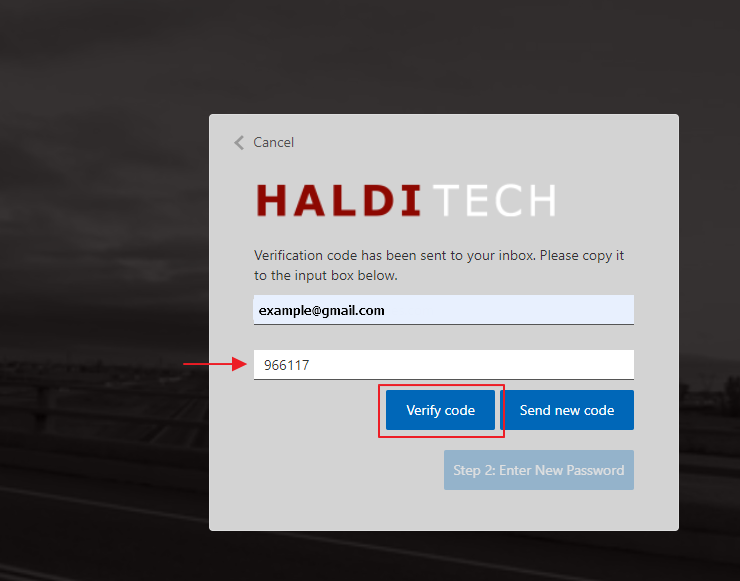
Step 3. Verify the code.
Go back to the Halditech login screen and enter your email and the 6-digit code. Click "Verify Code".
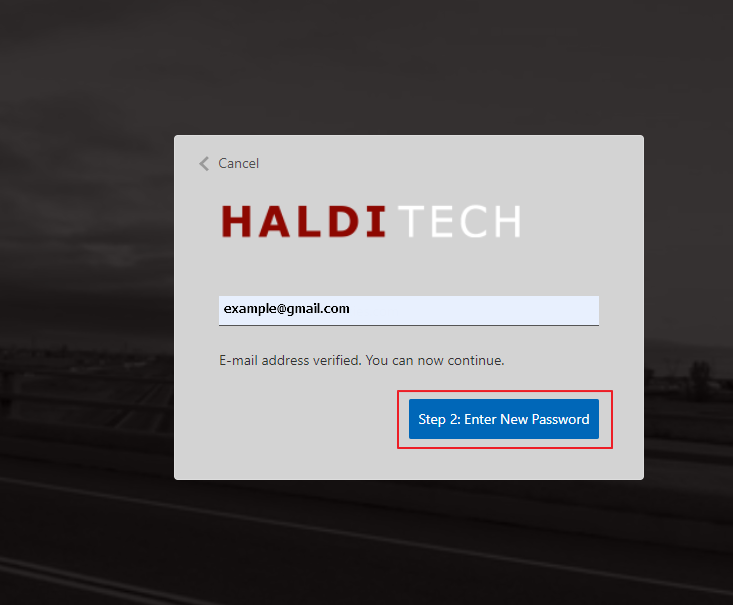
Step 4. Enter your new password.
Now that your email has been verified, click on Step 2 to enter your new password.
Step 5. Log in.
After you enter your new password, you will be taken back to the login screen. Enter your email and your new password to log in.
Need help?
Email support@halditech.com or call us at (470) 594-2534.