How to set up per diems for a solo OTR/layover driver?
Enable per diem rates and the solo OTR option so a driver receives per diem on all solo trips, then verify or override the days worked each week.
Here is how we look at per diems. If you haven't read it yet, start here: Per Diems.
Step 1. Turn on per diem rates
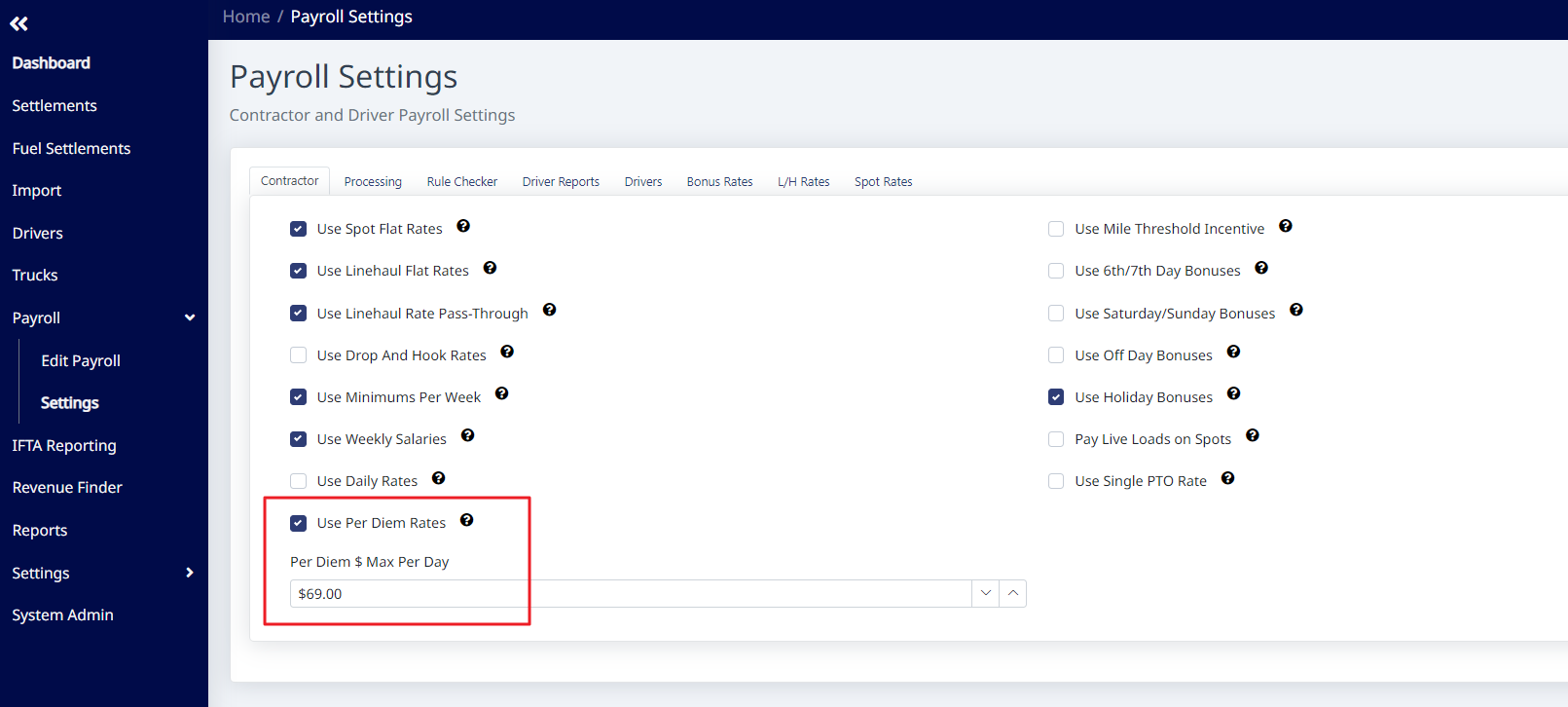
Go to Payroll > Settings. Turn on Use Per Diem Rates and enter the amount you pay for per diem in the box that appears.
Step 2. Enable solo OTR per diem on the driver
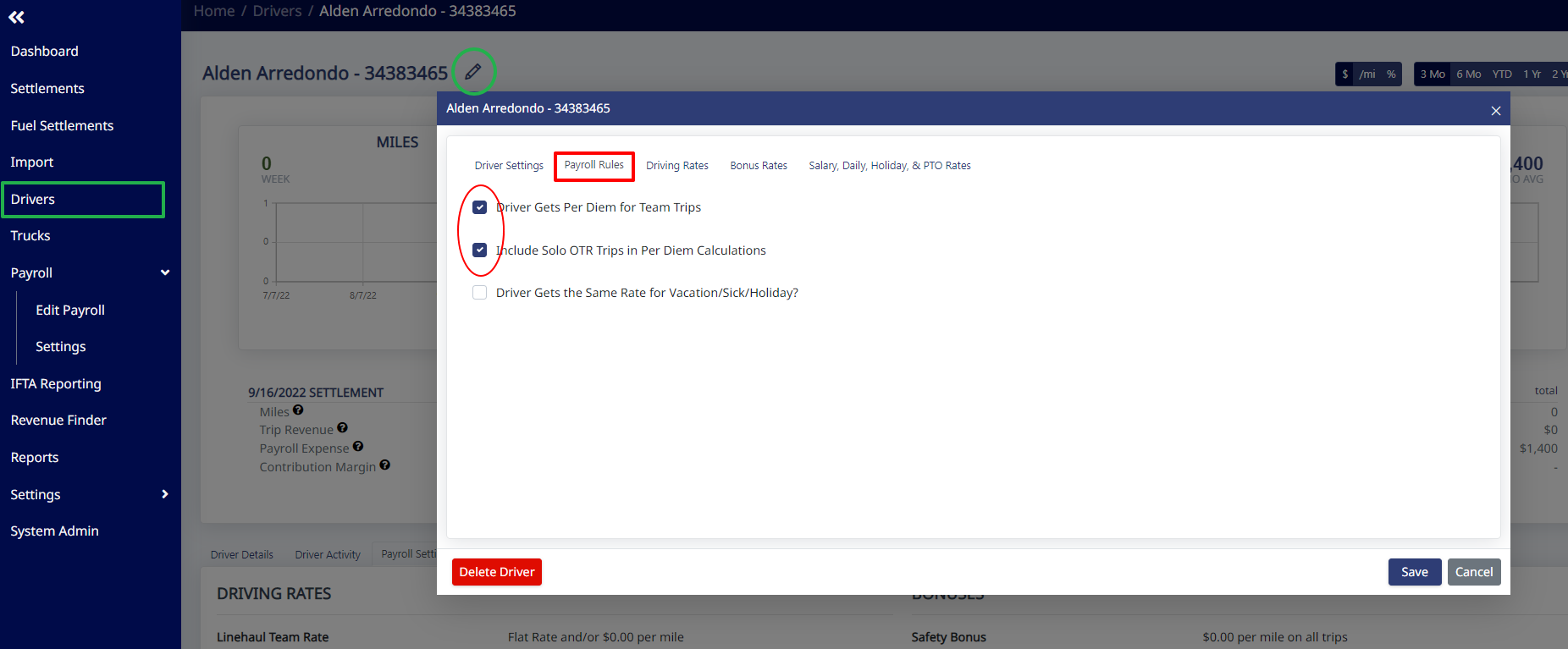
Go to a driver's profile and check the box next to Driver Gets Per Diem for Team Trips. When you turn this on, a new option appears that says Include Solo OTR Trips in Per Diem Calculations — turn that box on too. This applies the per diem to ALL solo trips for that driver.
Step 3. Verify or override days worked each week
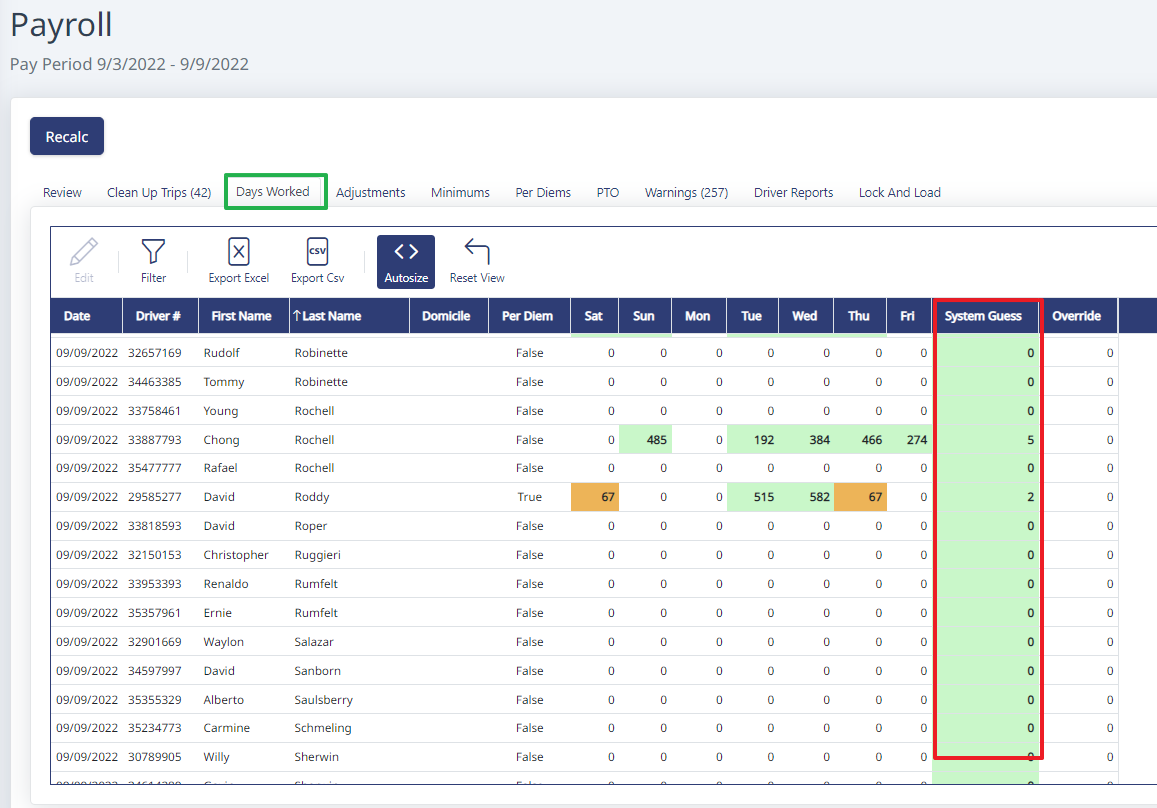
Each week, go to the Days Worked tab in payroll. The System Guess column shows how many days of per diem a driver will get. If the number of days doesn't match (for example, a driver drove 5 days but only had 3 nights OTR), override the system guess with the correct number of per diem days.
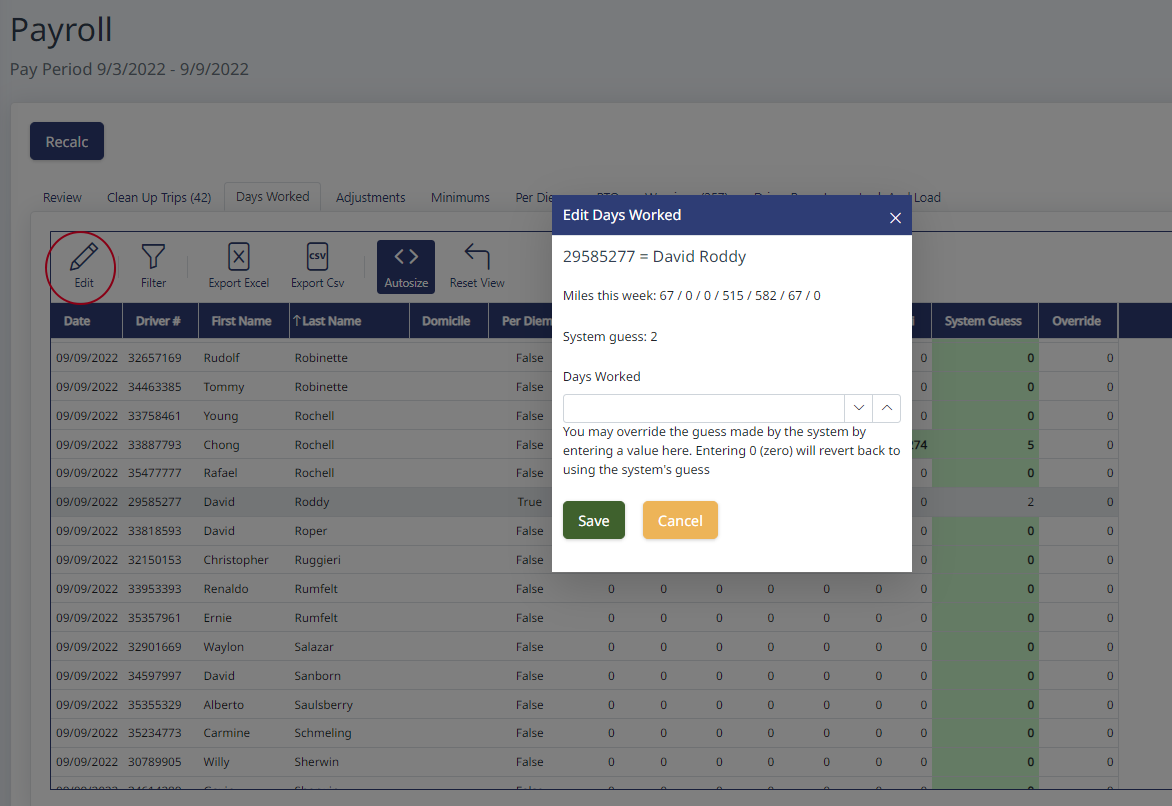
To override, highlight the driver's name, click Edit, and enter the days worked.
Need help?
Email support@halditech.com or call us at (470) 594-2534.